If you have a list of leads to add, the batch import solution will suit you better than manual lead creation. Go to the Import leads and organizations tab of the CRM configuration screen, download the sample file for leads, lead options, organizations, organization options, or tasks, fill it in with your data, and upload the CSV.
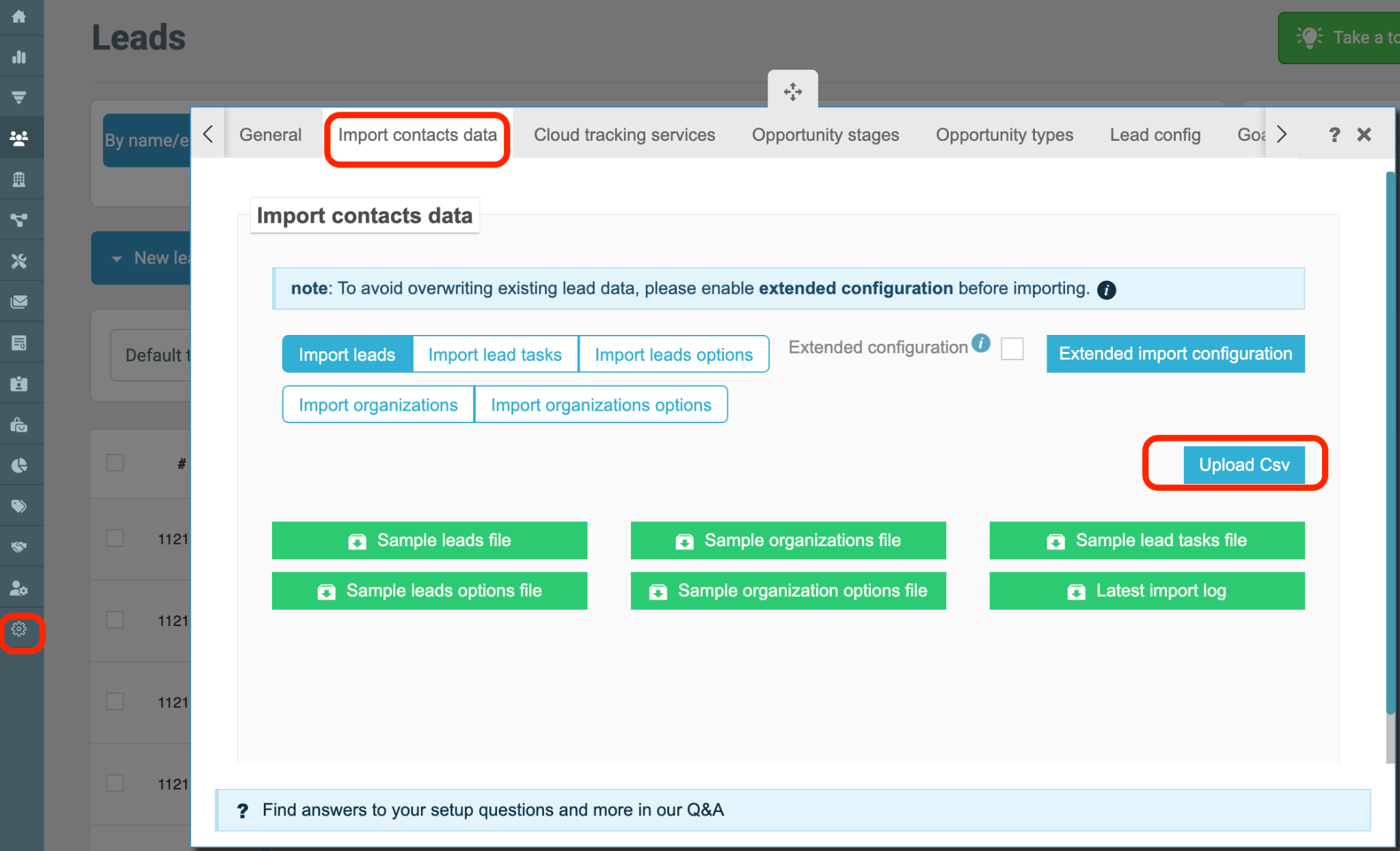
Several mandatory fields must be included in your import file:
First name
Last name
Mobile phone number or Email
Lead type
If any of these fields are missing, the system will not process the import correctly. If errors occur during or after the import, the system will generate an error log file containing a detailed description of the issues so they can be reviewed and corrected.
When preparing your CSV file, you must use the exact field names listed below. The system relies on these identifiers to correctly map your data.
prefix
lead_first_name
lead_last_name
organization_name
lead_mobile_country_code
lead_mobile_country_code_value
lead_mobile
lead_phone_country_code_value
lead_phone_country_code
lead_phone
lead_phone_extension
lead_email
lead_address
lead_address1
lead_city
lead_state_code
lead_zip
lead_country_code
lead_tags
custom_person_type
lead_position
organization_website
organization_website1
middle_name
lead_created_by_name
lead_created_by_email
lead_source
lead_type_name
custom_assistant_name
lead_notes
customer_group_name
lifecycle_name
organization_industry
created_at
last_activity
last_activity_type
last_activity_type_action
social_name
social_link
social_linkedin
social_facebook
social_gmb
social_twitter
It is important to keep the lead field names exactly as shown above. Even small changes such as spelling differences, extra spaces, or capitalization changes may cause import errors or incorrect data mapping.
If you are importing custom lead data, you can use the following naming format:
custom_fieldname
For example:
custom_budget
custom_campaign_source
custom_priority_level
Make sure custom fields already exist in your CRM configuration before importing data.
Navigate to CRM Configuration
Open Import leads and organizations
Download the sample CSV file
Fill in your data using the required field structure
Save the file in CSV format
Upload the file back into the import tool
Map fields if necessary and confirm the import
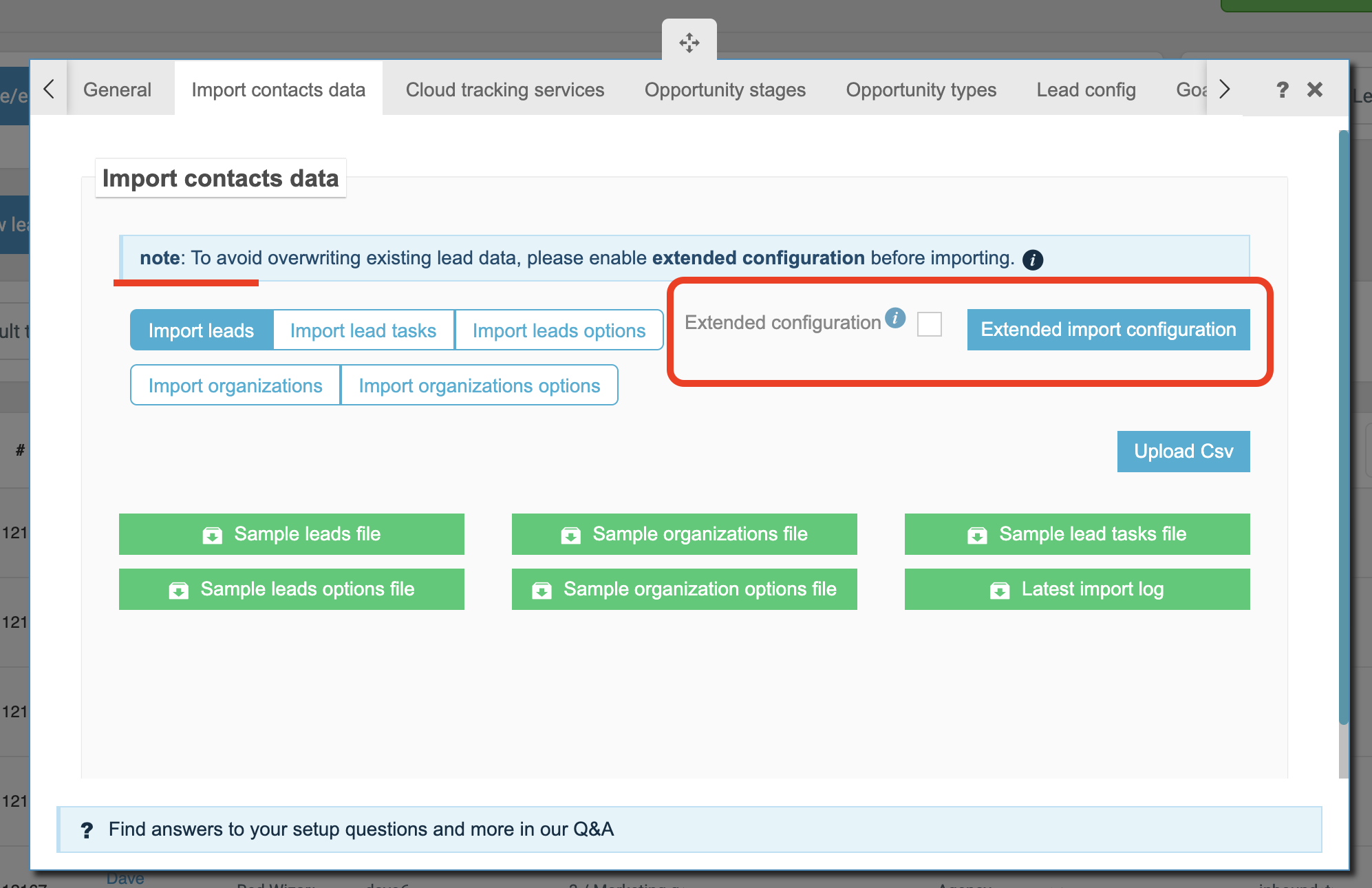
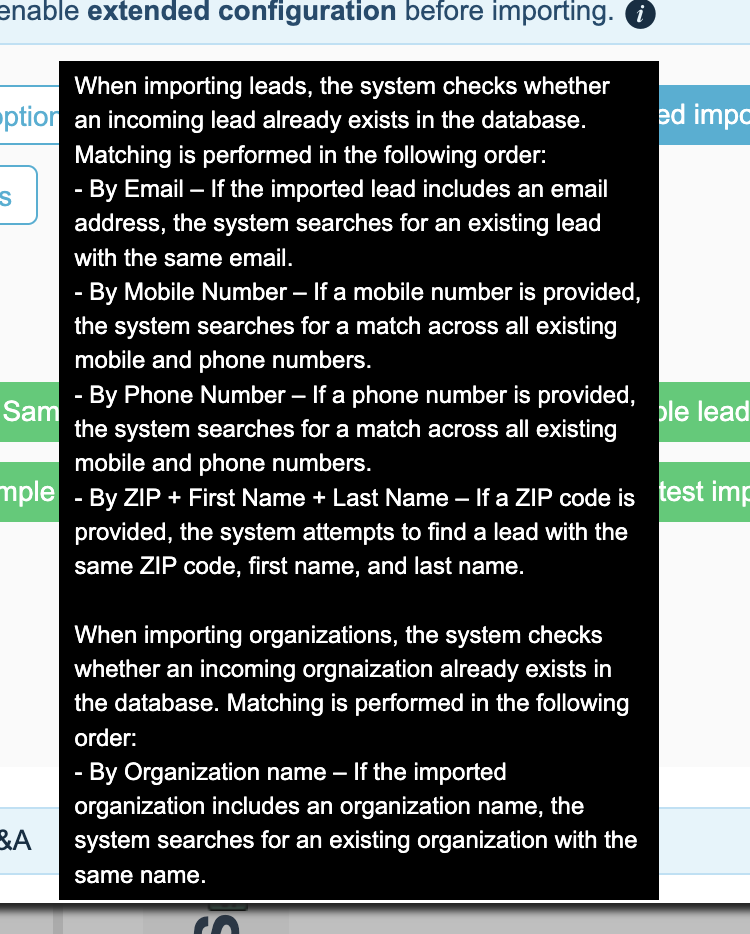
To avoid overwriting existing lead data, please enable Extended Configuration before importing.
Extended Configuration ensures:
Existing lead records are preserved
Only new or mapped data is added
Duplicate overwrites are prevented unless explicitly allowed
Test with a small sample file before full import
Ensure email addresses are valid and unique where possible
Use consistent formatting for phone numbers and country codes
Double-check required fields before upload
Keep a backup of the original CSV file
Following this structure will ensure that batch importing leads is fast, accurate, and properly integrated into your CRM system.


 sales:
  sales: