SeoSamba Point of Sale (POS) is a powerful, fully connected system designed to help you sell products seamlessly across physical stores, online, and multiple locations—all from a mobile device or tablet.
This guide walks through the core features of SeoSamba POS, from getting started and managing products to processing sales and using Quick Sale. Video tutorials will be added to each section for visual guidance, but this article provides a complete text-based reference you can use at any time.
To begin using SeoSamba POS, download the application from the App Store on your mobile phone or tablet. The latest version is fully optimized for tablets, including iPads, and supports a landscape layout that provides more screen space for faster navigation and checkout.
Once the app is installed:
Log in using your sales manager or sales rep credentials
Select your store location
Choose your checkout lane
After logging in, you can open a checkout lane and begin processing sales immediately.
SeoSamba POS tracks both local inventory and total inventory across all connected stores. This allows you to sell products that may not be physically available in your current location, including items stocked at other stores or available online.
All customer accounts and sales are shared across stores and online channels, ensuring a unified transaction history across all channels. Full customer records and advanced CRM tools remain accessible through the web-based interface. To access them, log in with your website address/go.
Adding products to your SeoSamba POS catalog is fast and intuitive, especially on a tablet where the larger screen allows you to view and edit more product details at once.
Any product created or updated in the POS app is automatically synced with:
Your website
All connected store locations
This means products can be sold in-store, online, or fulfilled from other locations without any additional setup.
To add a new product:
Tap the New Product button
Take photos using your device’s camera
Enter the product name, tags, brand, and condition
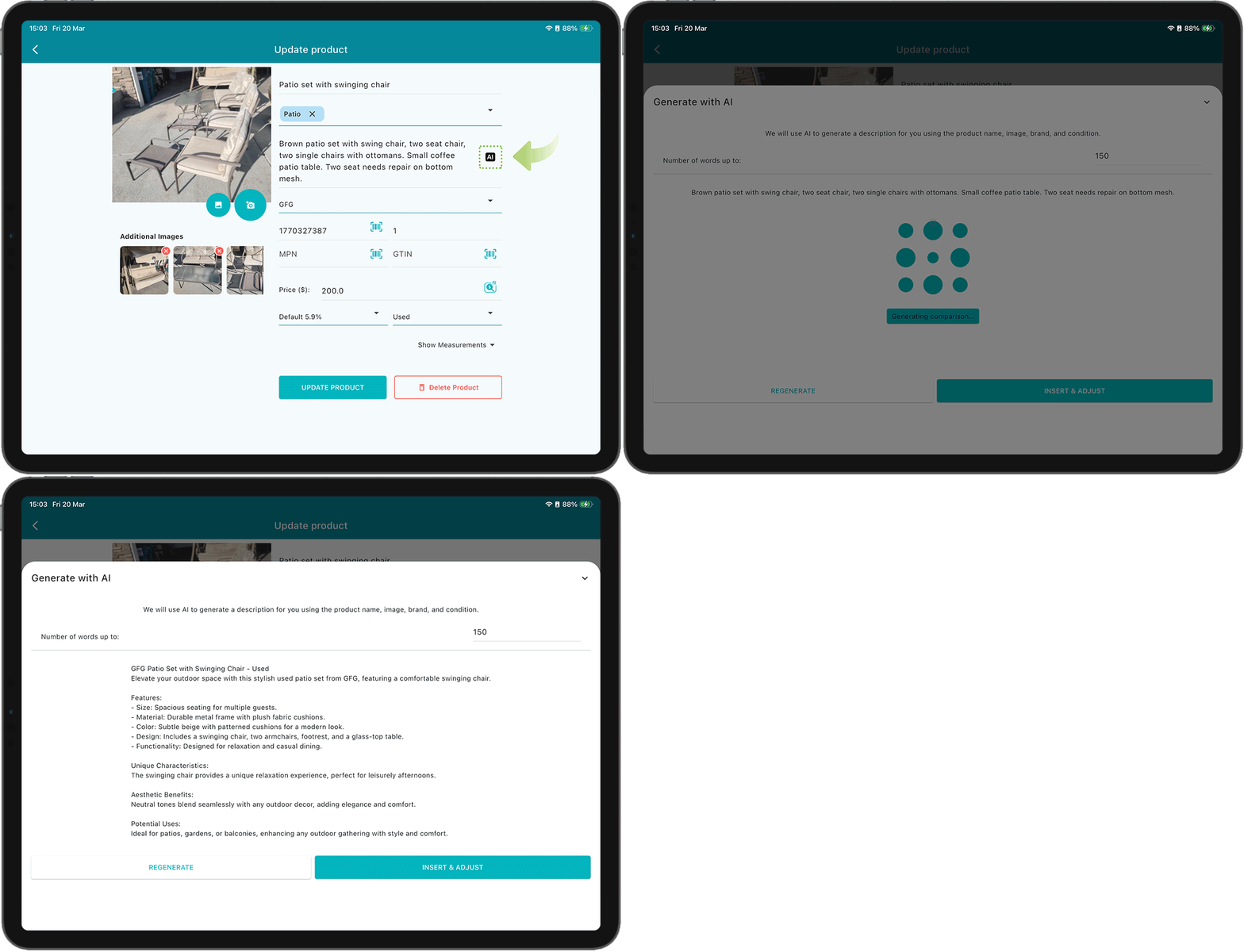
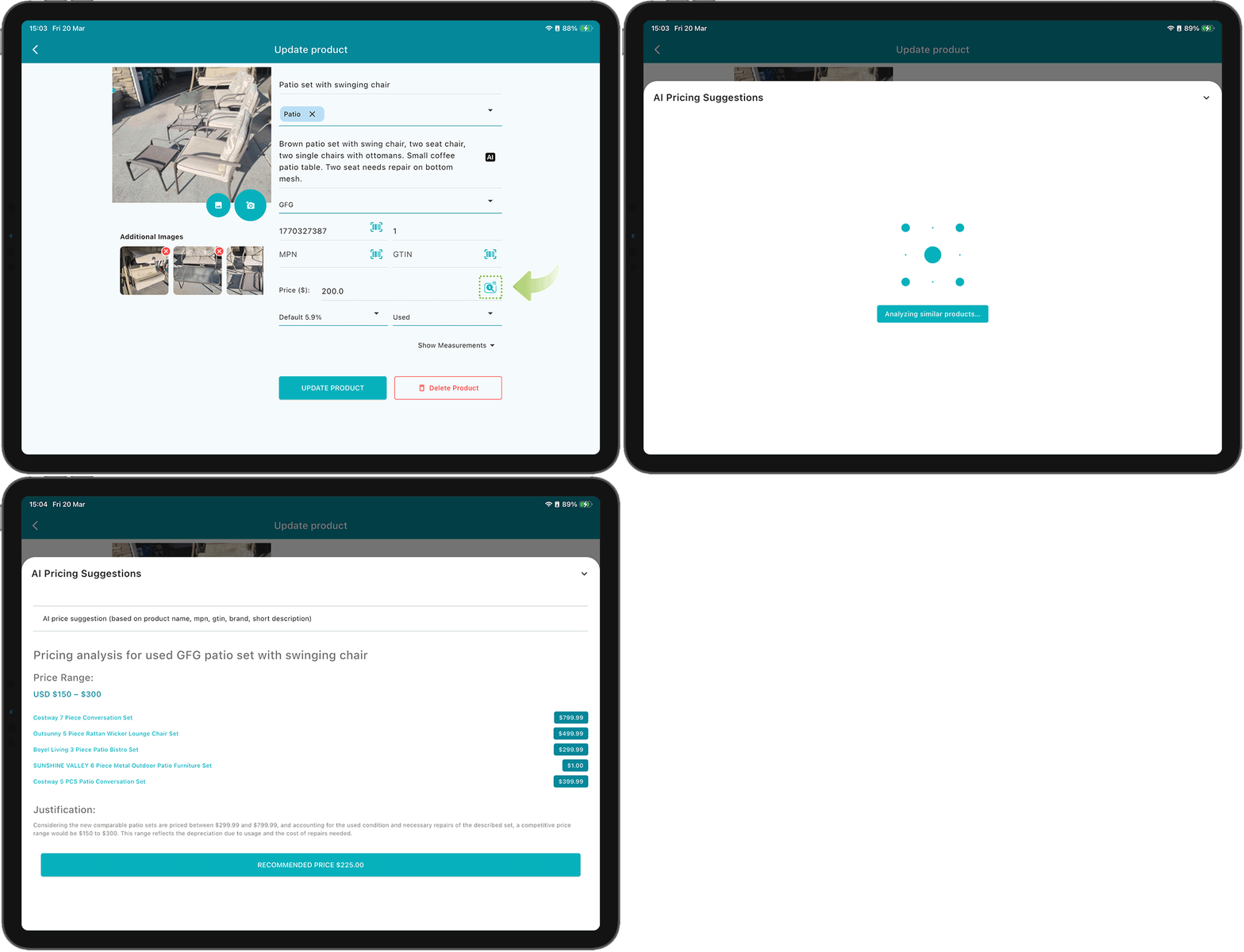
SeoSamba POS includes AI-assisted tools to speed up product creation:
AI-generated product descriptions can be created automatically from a product photo
AI price comparison analyzes competitor pricing and suggests an optimal price
You can also manually enter product identifiers such as MPN, SKU, or GTIN, or use the built-in barcode scanner for faster and more accurate input.
Next, set the available quantity, price, applicable tax rate, and optional measurements.
When finished, tap Create Product to save.
Once saved, the product becomes immediately available on your website and across all connected store locations.
Managing existing products in SeoSamba POS is just as simple.
To edit a product:
Open the product list
Use search, tags, or filters to find the product
Tap the product and then click the "edit" icon to update details such as price, quantity, tags, or descriptions
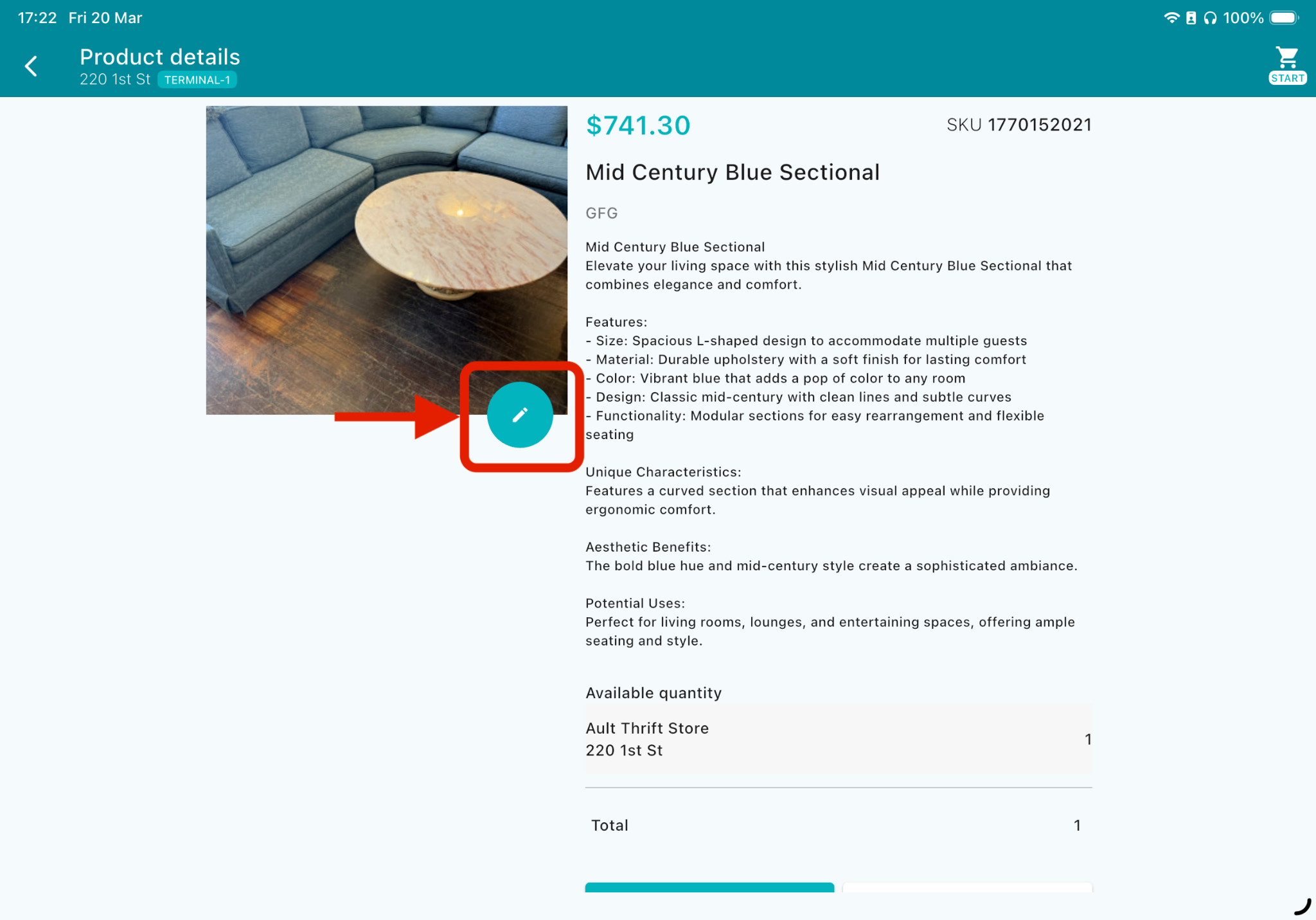
All changes made in the POS app are automatically synced across your website and all store locations, keeping your catalog consistent everywhere.
To delete the product, follow these steps:
Open the product list
Use search, tags, or filters to find the product
Tap the product and then click the "edit" icon. There, you will see that you can update product details, or the "Delete Product" button
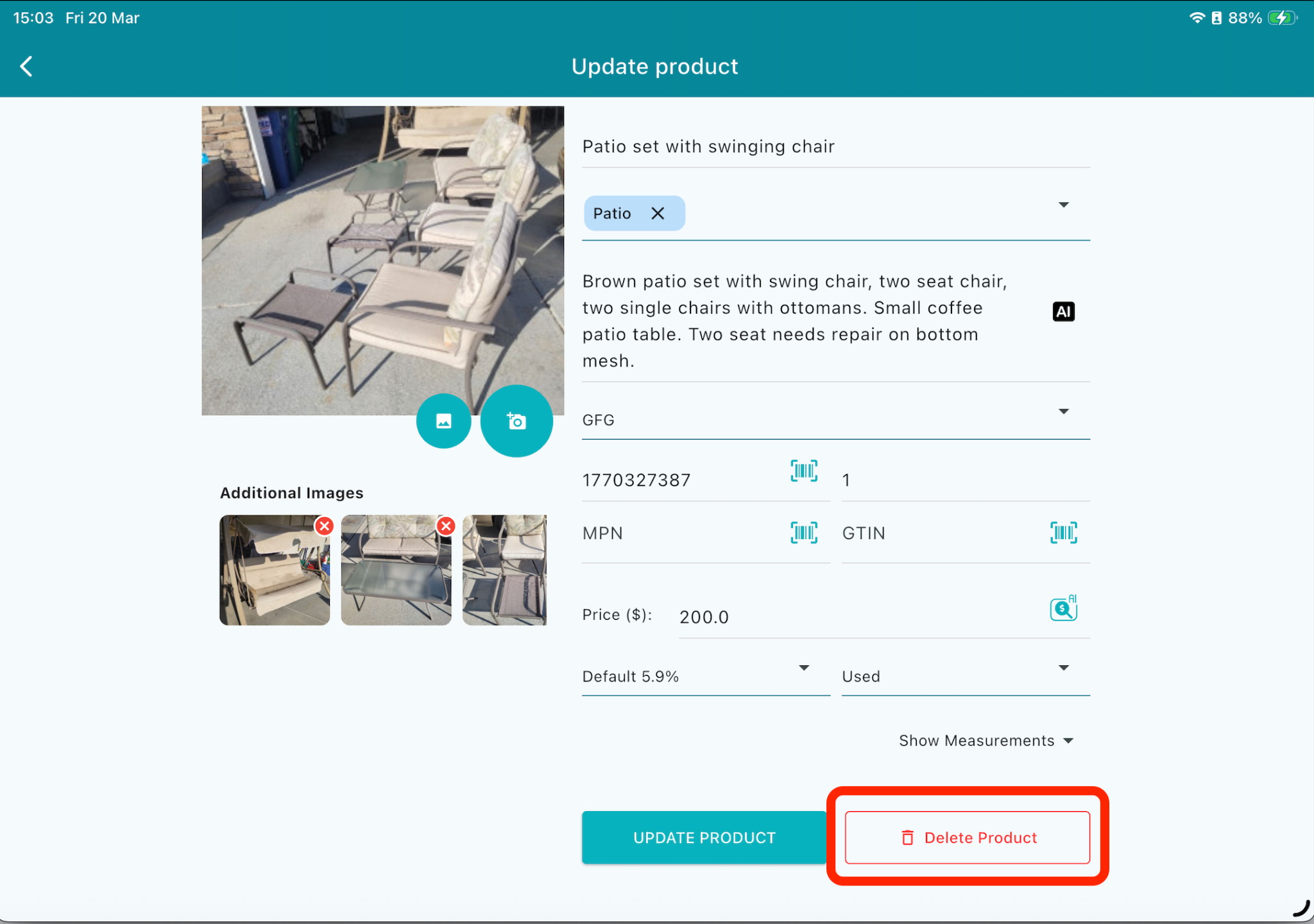
SeoSamba POS includes intelligent safeguards when deleting products.
When you delete a product, the system checks where and how it is used:
If the product exists in only one store and has no completed sales, it can be fully removed from the system
If the product exists in multiple locations, deleting it from the POS removes the inventory only from the current store, while the product remains active in other locations
This prevents accidental data loss and ensures sales history remains intact.
For online listings and advanced merchandising, SeoSamba integrates with the web-based SeoToaster system.
Through the SeoToaster interface, you can:
Add additional images and videos to product pages
Expand product descriptions and SEO content
Manage promotions and online presentation
SeoToaster also provides thousands of advanced features, including XML product catalogs for advertising platforms, marketplaces, and remarketing campaigns.
To see the product XML feed for your website, simply write your website address/sitemapproducts.xml
Like this: yourwebsite/sitemapproducts.xml
SeoSamba POS functions as a full-featured cash register, optimized for tablet use in landscape mode—ideal for countertop or stand-based setups.
To begin a transaction, tap Start. From there, you can:
Scan product barcodes
Look up products in your catalog
Add items manually
The barcode scanner runs continuously, allowing products to be scanned using your device’s camera. Scanned items appear instantly on screen for confirmation.
During a transaction, you can search products by name, filter by tags, or sort by price or name. The cart remains active while browsing.
Each product displays:
Inventory for the selected store
Total inventory across all locations
Inventory updates automatically as sales occur. You can adjust quantities or remove items with a simple swipe.
When ready, tap Checkout. You can optionally select a customer account or complete the sale without one.
If a customer account is selected, you can:
Ship items to an existing or new address
Choose from all shipping methods available on your website
For in-store pickup, select Take Away.
If items are fulfilled from multiple locations, SeoSamba automatically generates pickup slips or shipping notifications for each store. Store managers can manage these orders through the website’s order management screen.
Discounts can be applied using coupons, which are created and managed through your website’s merchandising tools.
SeoSamba POS supports multiple payment methods, including:
Wireless card readers
Tap-to-pay directly on your phone or tablet
Manual card entry or scanning
Cash payments with automatic change calculation
After completing the transaction, you can print or email the receipt. Receipts can also include a review link, allowing customers to leave feedback on platforms such as Google or Facebook.
All transactions are securely recorded, and customer credit card details are never stored in the system.
Quick Sale is designed for speed and simplicity and works seamlessly on both phones and tablets. It’s ideal for service-based sales, mobile merchants, or selling ad-hoc items without adding them to your full inventory.
To complete a Quick Sale:
Enter the item price
Select the payment method
Complete the sale
You can optionally take a photo of the item and attach it to the transaction. AI-assisted descriptions can automatically generate a clear and professional item description from the photo.
Once the sale is complete, you can email the receipt or send a review link via text or email.


 sales:
  sales: